Sub-Account Panel
4 min
Once you have created a sub-account in the Admin Panel, you can manage it from the Sub-Account Panel.
General Information
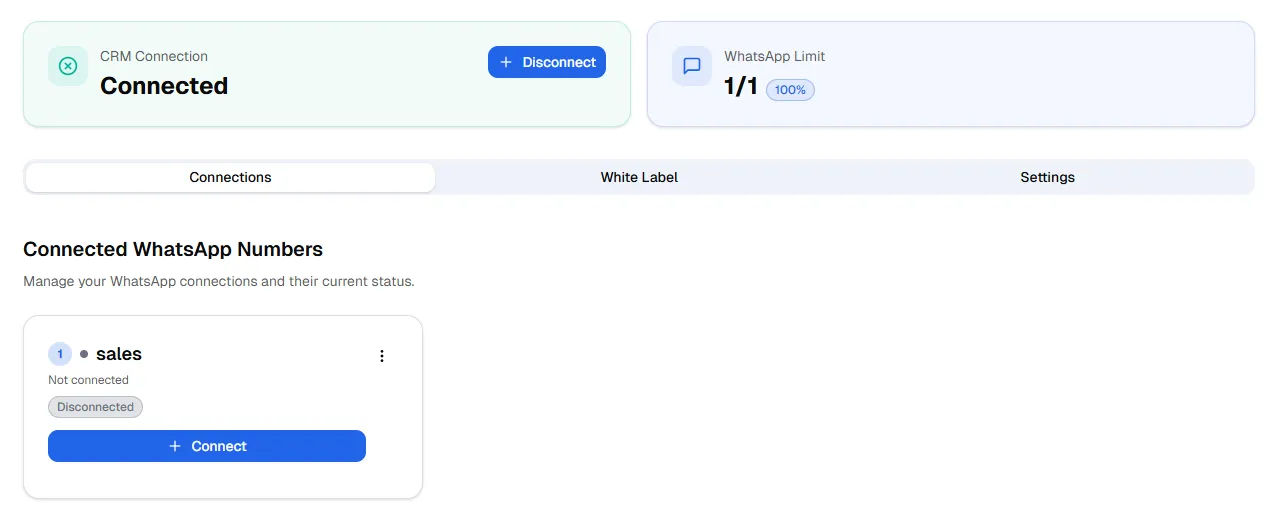
- From the Sub-Account Panel, you can view:
- Sub-account limits (e.g., maximum WhatsApp numbers).
- Current usage (e.g., how many WhatsApp numbers are already connected).
- To edit, delete, or increase the limit of phone numbers, you must return to the Admin Panel.
Connecting the Sub-Account to your CRM
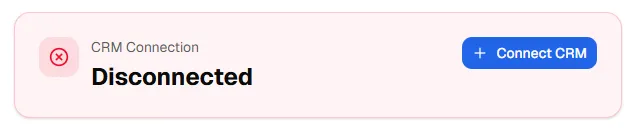
- The first step is to connect the sub-account.
- Wazzap provides several CRM integrations to manage conversations.
- Choose the integration that best fits your needs.
- Current CRM integrations:
Connecting a New WhatsApp Number
- Once you have chosen your CRM integration, click Connect a New WhatsApp.
- Enter a name for the number you want to connect.
- The system will generate a QR code.
- Open WhatsApp or WhatsApp Business on your phone.
- Go to Linked Devices in the settings.
- Select Link a Device and scan the QR code (just like WhatsApp Web).
QR Code Process (Visual Guide)
- The panel will first display a message: “WhatsApp will start generating QR code, wait a moment.”
- A QR code will then appear.
- Use your mobile app to scan this QR.
- Once scanned, the WhatsApp number will be connected to the sub-account.
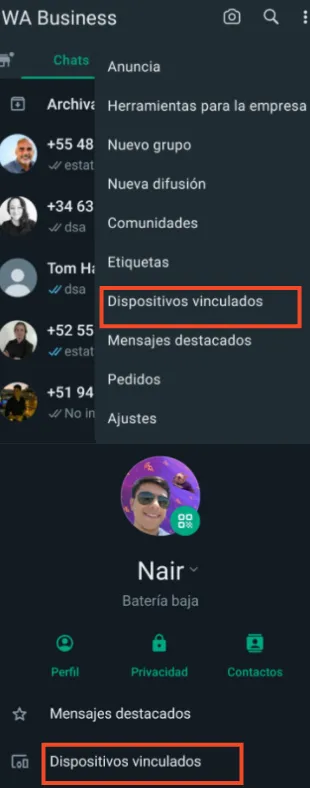
WhatsApp Devices
Additional Options in the Sub-Account Panel
- Sign out – Securely sign out from the Sub-Account Panel.
- Change Password – Allows you to update the password of the sub-account for security purposes.
- White label Link – Provides a special link that you can iframe everywhere so that your clients can use it to scan their WhatsApp QR codes directly.
- This is particularly useful for agencies using Whitelabel.
- Full documentation on White label Link is available in the reference guide.
- Custom Menu Link (for CRMs) – If your sub-account is connected to a CRM such as Highlevel, the system can automatically generate a global custom menu link.
- More details can be found in the documentation for GHL White-Label URL