Admin Panel
4 min
Follow these steps to create and manage sub-accounts in Wazzap:
Accessing the Admin Panel
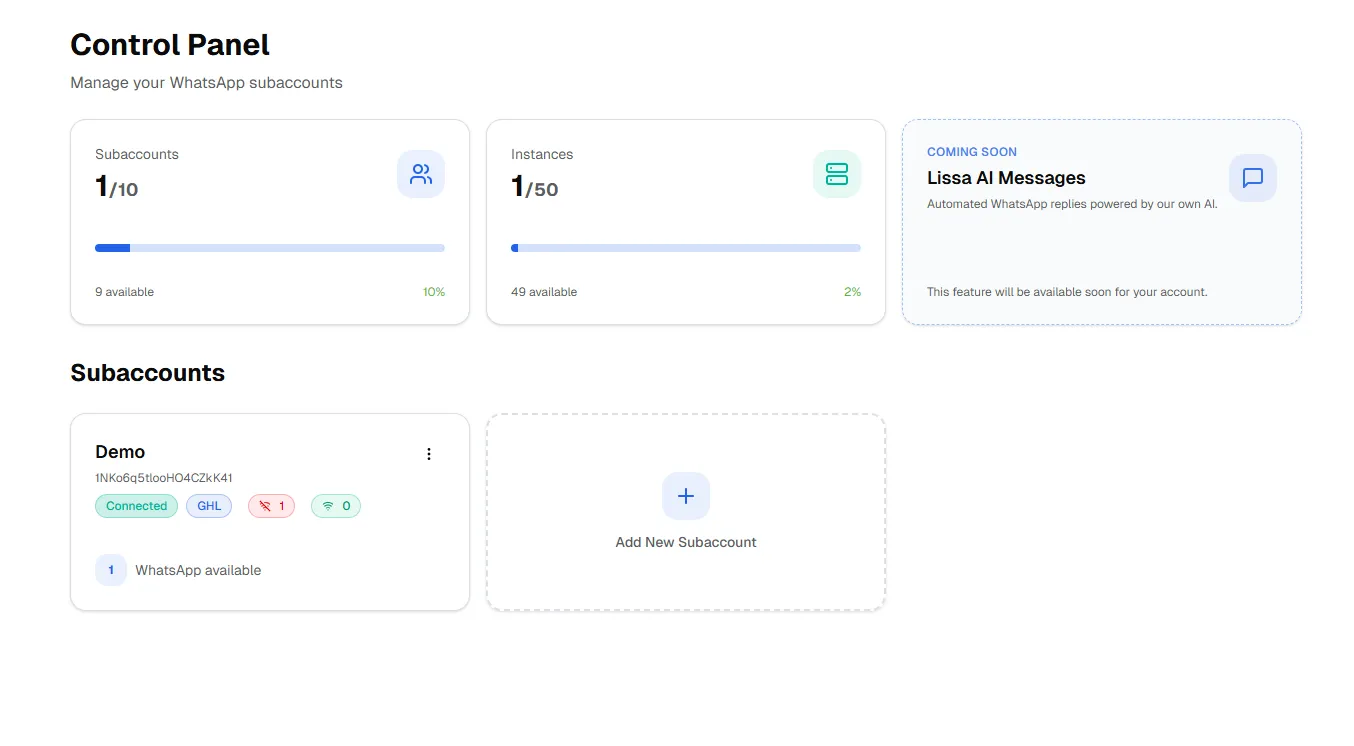
- Use the Admin Panel link provided in your welcome email.
- Save this link as a browser favorite for easy access.
- Log in with your default password: admin (lowercase).
Note: The default password is admin (lowercase).
Creating a Sub-Account
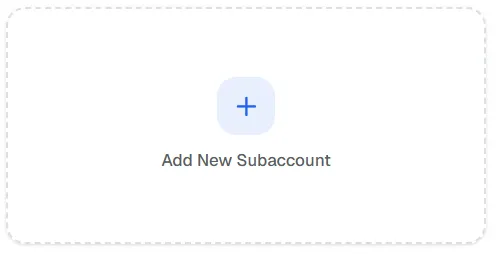
- Click Create a Sub-Account.
- Enter a name for the new sub-account.
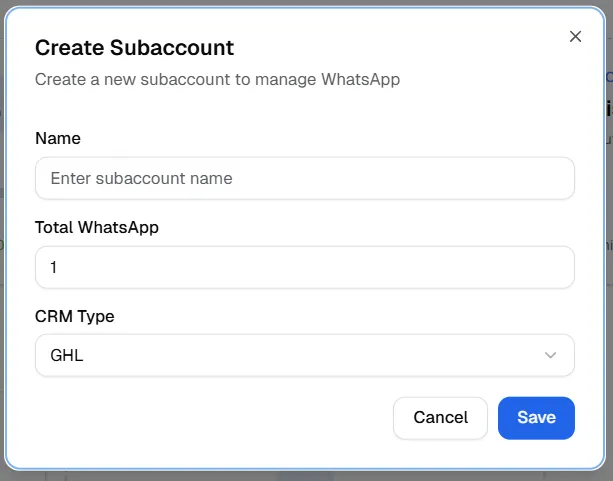
- Choose the number of phone lines for this sub-account.
To edit the limit of phone numbers, you must return to the Admin Panel.
Other Admin Panel Options
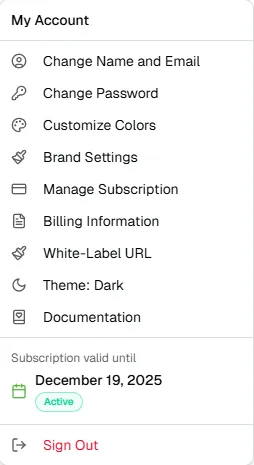
- Change Name and Email – Update the administrator’s name and the email address associated with the account.
- Change Password – Modify the account password to maintain security. (Recommended)
- Customize Colors – Adjust the platform’s color scheme to match your brand identity.
- Brand settings – Manage core brand elements such as logo, brand name, and visual guidelines.
- Manage Subscription – View or update your subscription details.
- Billing Information – Review and update billing details, including payment methods and invoicing data.
- GHL White-Label URL – Generate a dynamic custom menu link (Exclusive to Highlevel CRM Integration)
- Theme (Dark Mode) – Enable or disable the dark theme for the admin panel interface.
- Documentation – Access our official documentation, user guides, and support resources.
- Subscription Expiration Date – View the date your subscription remains valid until.
- Sign Out – Securely log out of the admin panel.
You are now ready to manage your Sub-Account Panel