Highlevel CRM Integration
4 min
This integration allows you to connect Wazzap with your HighLevel sub-accounts so conversations can be managed directly inside HighLevel.
Requirements
- You must have a HighLevel Agency account.
- You can sign up with this special deal, which includes a 30-day free trial with extra bonuses and tutorials.
- Make sure you are logged in at app.gohighlevel.com.
- You must have Agency Owner or Admin permissions to perform this integration.
Connecting Wazzap to HighLevel
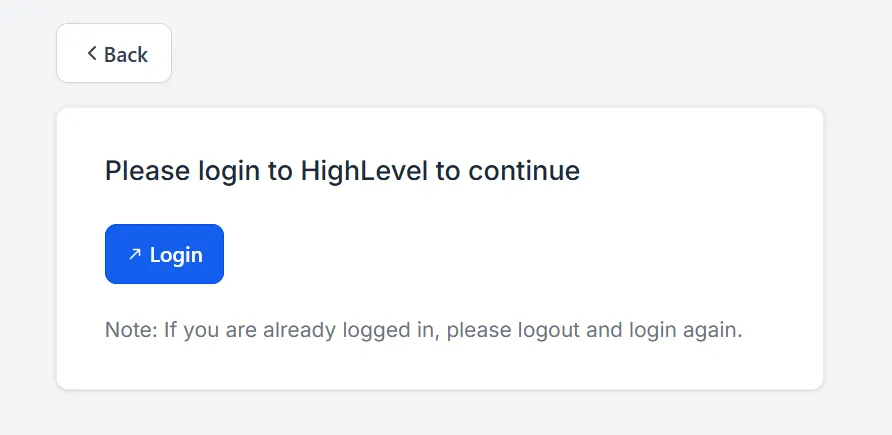
- Make sure you are logged in at app.gohighlevel.com.
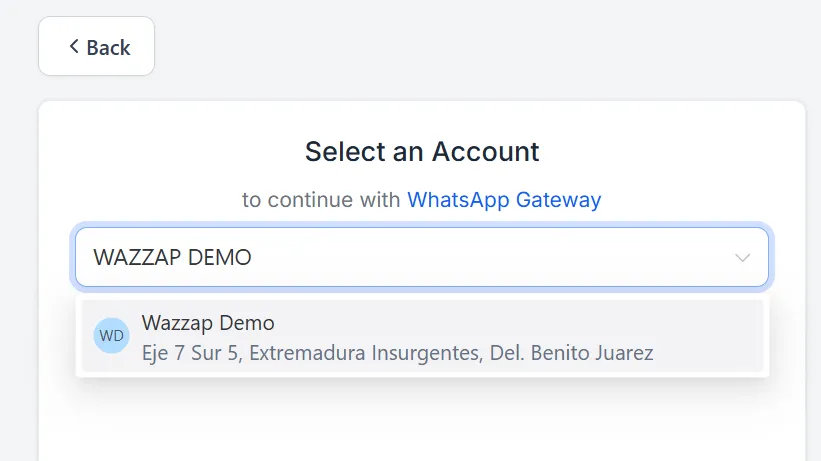
- Select the specific sub-account you want to connect.
3, Click Proceed.
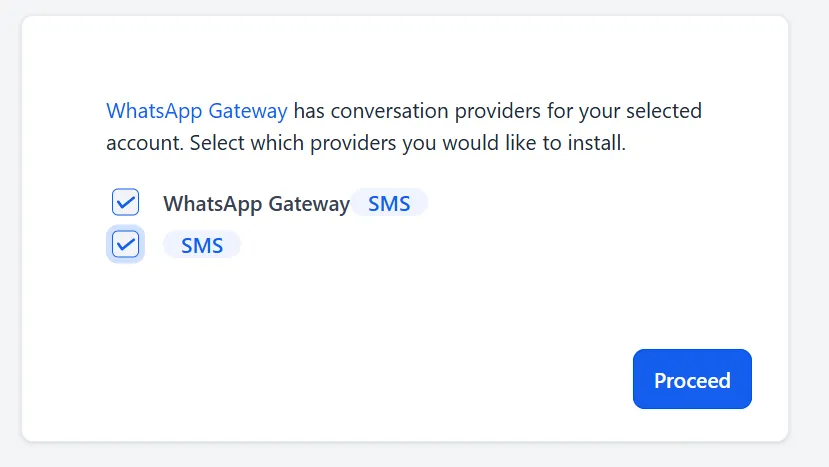
- A confirmation message will appear: “Subaccount successfully connected!”.
Configuring Phone Numbers in HighLevel
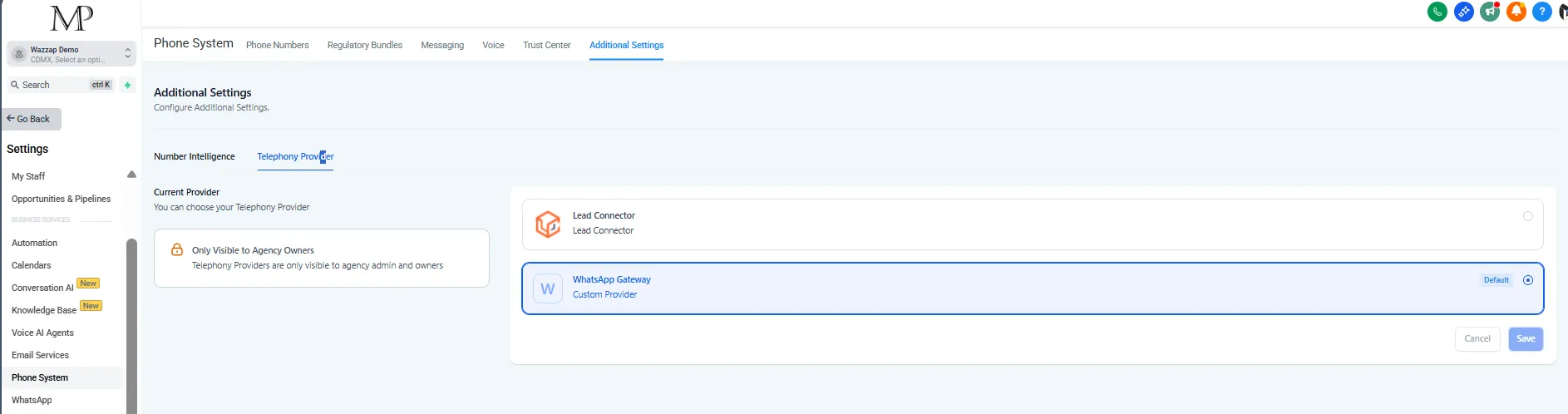
- Go to the HighLevel sub-account you just connected with Wazzap.
- Click Settings.
- Navigate to Phone System.
- Click Additional Settings - Telephony provider.
- Select the provider: WhatsApp-Gateway.
- Click Save to confirm your changes.
Integration Complete
Your Wazzap sub-account is now integrated with HighLevel. WhatsApp conversations can be managed directly inside your HighLevel CRM.
Additional Documentation
- Getting Started with Workflows: https://help.gohighlevel.com/support/solutions/articles/155000002288-getting-started-with-workflows
- Add Attachments to Documents & Templates (Support up to 5 MB each): https://help.gohighlevel.com/support/solutions/articles/48001208913-file-size-limits-for-attachments-in-sms-and-email
- Creating Custom Fields: https://help.gohighlevel.com/support/solutions/articles/48001161579-how-to-use-custom-fields
- Customer Replied Triggers: https://help.gohighlevel.com/support/solutions/articles/155000002677-workflow-trigger-customer-replied
- Split Traffic Action: https://help.gohighlevel.com/support/solutions/articles/155000001717-split-action
- Contact Tag Added Trigger: https://help.gohighlevel.com/support/solutions/articles/48001213546-workflow-trigger-contact-tag