Brand settings
Brand Settings
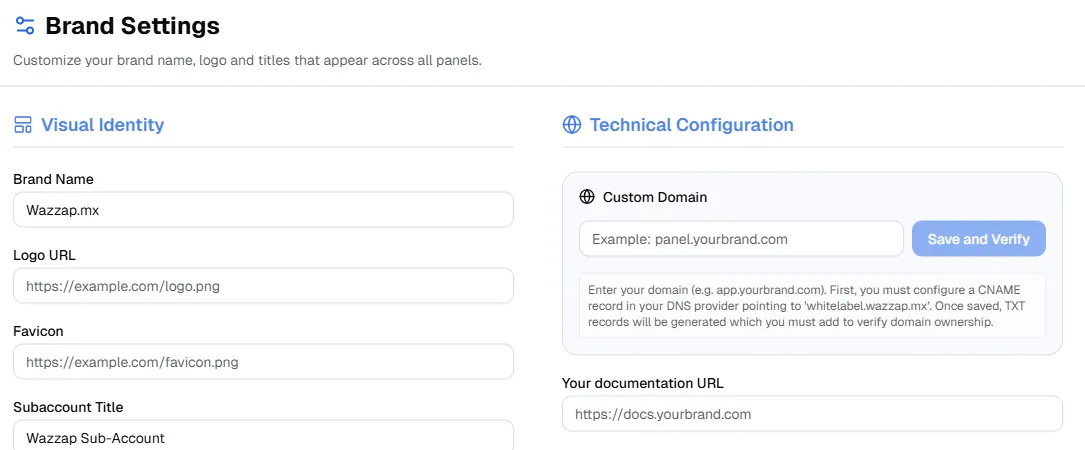
The Brand Settings section allows you to customize your brand identity and technical configuration across all panels. Changes made here will be reflected throughout the platform for both administrators and subaccounts.
Visual Identity
Brand Name - Defines the name of your brand as it appears across all panels and interfaces.
Logo URL - URL of your brand logo. The logo must be publicly accessible and is used throughout the platform.
Recommended formats: PNG or SVG.
Favicon - URL of the favicon displayed in browser tabs.
Recommended size: 16×16 or 32×32 pixels.
Subaccount Title - Default title shown for all subaccounts. This helps identify subaccounts consistently across the platform.
Custom Domain Technical Configuration
Custom Domain - Allows you to use a custom domain for your admin panel.
How it works:
- Enter your custom domain (e.g. panel.yourbrand.com).
- Click Save and Verify.
- Create a CNAME record in your DNS provider pointing to white-label.wazzap.mx.
- Add the generated TXT records to verify domain ownership.
- Once verified, your custom domain will be active.
Once configured, you will have two available login URLs:
- app.wazzap.mx (default platform login)
- Your custom domain (e.g. panel.yourbrand.com)
Both login URLs provide access to the same account and data.
Documentation URL - Defines the URL where your branded documentation is hosted. This link will be used when users access help or documentation from the platform.
Example: https://docs.yourbrand.com
Notes
- All URLs must be publicly accessible.
- DNS changes may take time to propagate depending on your provider.
- Incorrect domain or DNS configuration may prevent successful verification.